JobDiva Integration – Customer Guides
Below you’ll find two short, non‑technical guides:- Connecting JobDiva to Our Platform – what you need to do once.
- What Happens After You Connect – how everything works automatically.
1. Setup & Configuration
Connect JobDiva
First, ensure your JobDiva organization is connected to Asendia. You will need:- Client ID
- Username
- Password
Set up JobDiva custom fields
-
Go to JobDiva and add new user-defined fields for the job

-
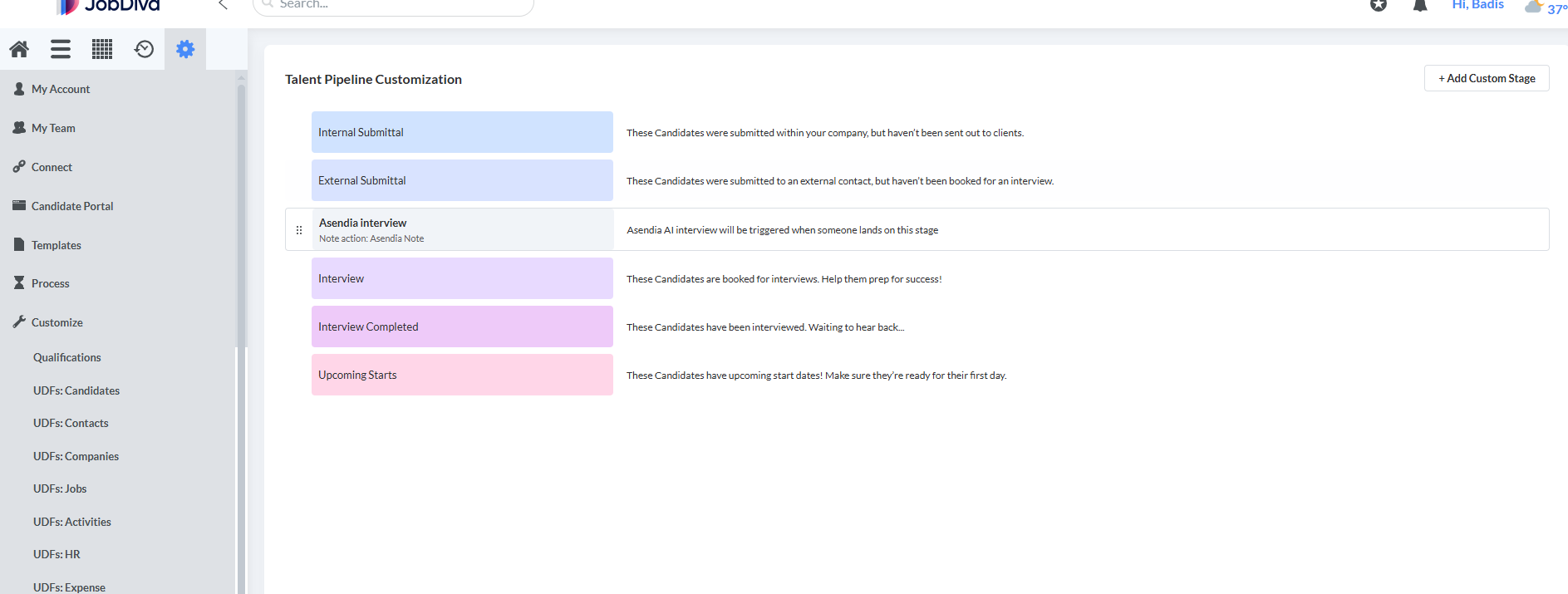
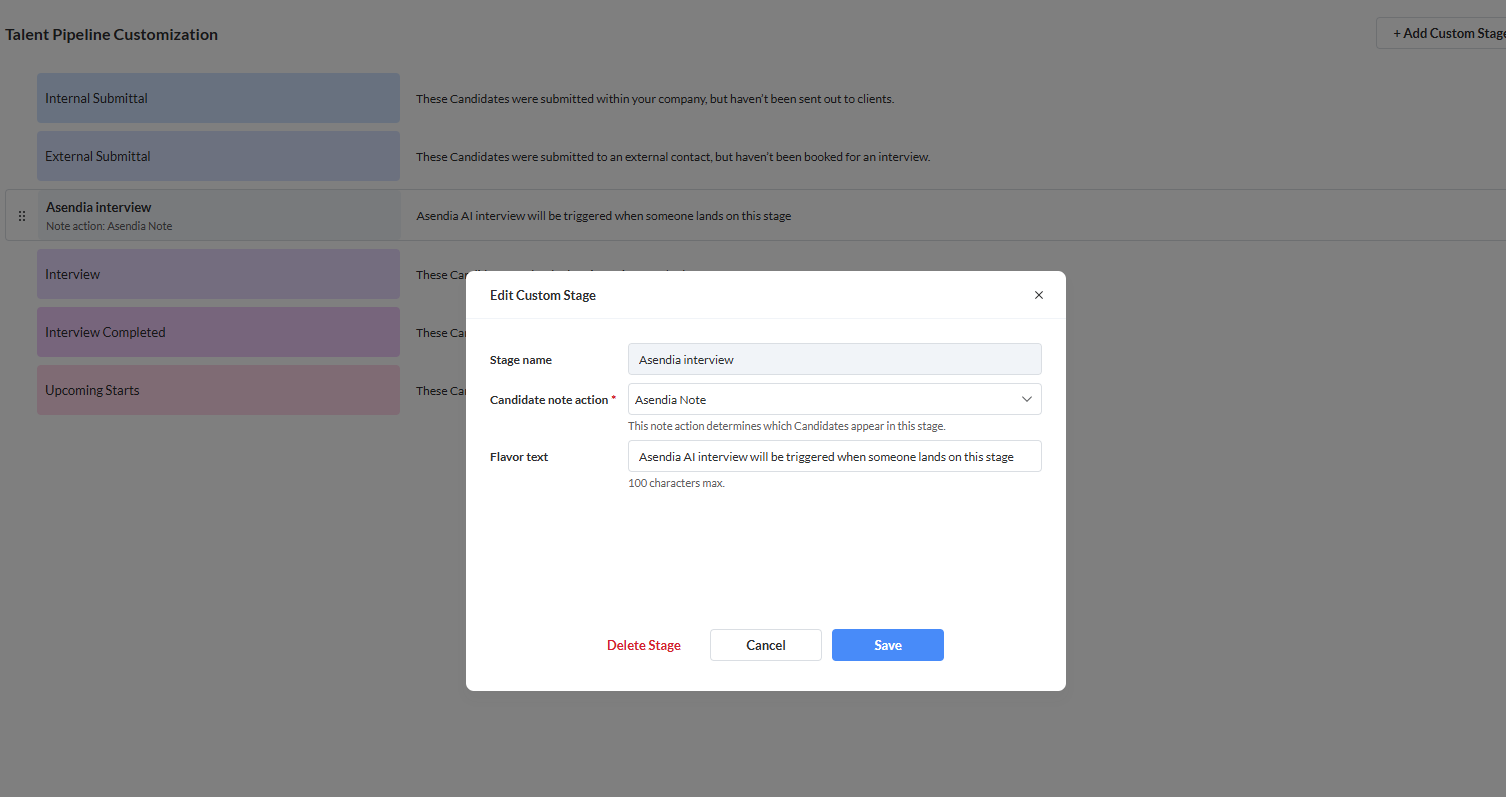
Create a new pipeline (custom stage) called Asendia Interview
Enable AI Interviews (Hybrid Mode)
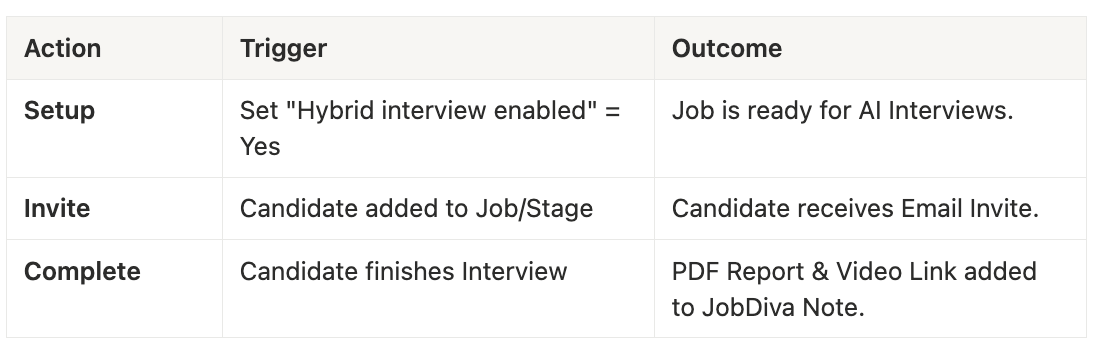
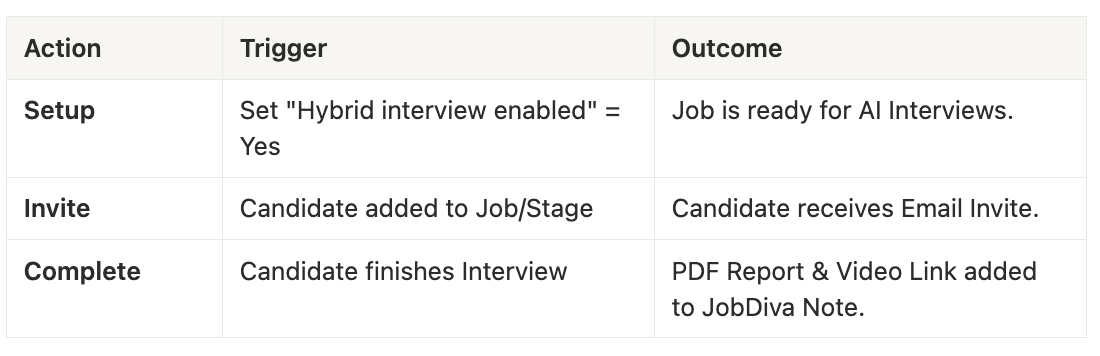
To enable AI interviews for a specific job, you need to configure User Fields in JobDiva.- Open a Job in JobDiva.
- Locate the User Fields section (or Custom Fields).
- Add/Update the following fields:
- Hybrid interview enabled: Set to
Yes,yes - Hybrid Interview Questions: Enter your custom interview questions here.
- Format: Numbered list (e.g.,
1. Tell me about yourself. 2. What is your experience with Python?) or separate with new lines.
- Format: Numbered list (e.g.,
- Hybrid interview enabled: Set to
Note: If “Hybrid interview enabled” is set to No or left blank, the system may default to a standard AI-Dynamic interview based on the job description.
2. Triggering the Interview
aOnce the integration is active and the job is set up:-
Triggering the Interview: You have to go to Talent Pipeline, drag the candidate from one stage to
Asendia Interview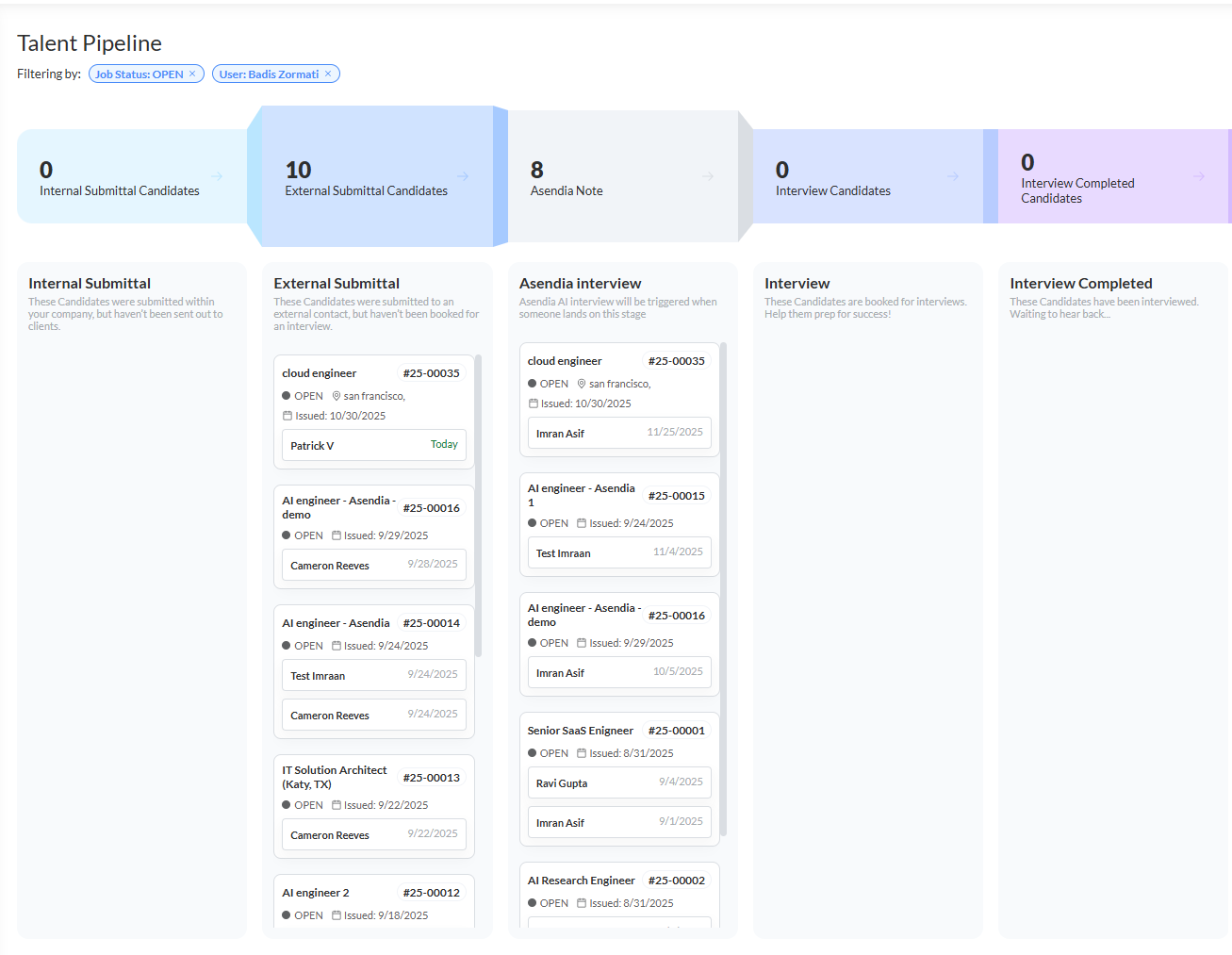
- Invitation: The candidate automatically receives an email invitation with a secure Magic Link.
- Verification: The candidate clicks the link and verifies their identity (using their email) to access the AI Interview portal.
3. Post-Interview Results
After the candidate completes the AI interview, the results are automatically synced back to JobDiva.Where to find results:
- Candidate Notes: A new note is created in the candidate’s profile.
- Subject: “AI Interview Assessment - [Job Title]”
- Content: Contains a summary of the interview.
- Attachments:
- PDF Report: A comprehensive “Interview Assessment Report” is attached to the note/candidate record. This includes the AI’s evaluation, scores, and transcript summary.
- Video Recording: A link to the full video recording of the interview is provided in the note.
Triggers Summary